How to Use Claude Code, Codex CLI, and Gemini CLI Without Geo-Restrictions Using FastSox
The terminal is where developers live. Over the last two years, AI-native CLI tools have moved from curiosity to daily workflow: Claude Code lets you hand off entire refactoring tasks to an AI agent running in your shell, OpenAI Codex CLI brings GPT-4-class code generation to the command line, and Google Gemini CLI connects your terminal to Gemini's multimodal reasoning. Combined, these three tools can replace hours of context-switching between your editor, browser, and chat interface.
There is one recurring problem: all three depend on APIs that are geo-restricted or rate-throttled by region. If you are connecting from a country where Anthropic, OpenAI, or Google have restricted access — or from a network where your ISP applies DPI-based traffic shaping — these tools simply fail. You get connection timeouts, 403 errors, or degraded performance that makes real-time code generation unusable.
FastSox solves this at the network layer, before the request ever leaves your machine. This guide walks through three concrete methods — from a one-click app to a minimal SOCKS5 proxy — so you can choose the level of control that fits your workflow.
The Problem: AI CLI Tools and Geo-Restrictions
Claude Code
Claude Code is Anthropic's agentic coding tool. It runs as a Node.js process in your terminal and communicates with api.anthropic.com. Anthropic's API is available in a large number of countries, but access from certain regions — including parts of East Asia, Central Asia, the Middle East, and some African markets — is either blocked outright or subject to ISP-level interference. Users in "available" countries also frequently hit rate-limiting that correlates with IP geolocation, not account limits.
OpenAI Codex CLI
The Codex CLI (@openai/codex) connects to api.openai.com. OpenAI applies one of the most comprehensive geo-restriction policies among AI providers: access is blocked in China, Russia, Iran, Syria, Cuba, North Korea, and a number of other jurisdictions. Beyond outright blocks, ISPs in partially-restricted markets often throttle or reset connections to OpenAI endpoints, making streaming responses stutter or drop entirely.
Google Gemini CLI
The Gemini CLI (@google/gemini-cli) connects to generativelanguage.googleapis.com. Google's Gemini API is unavailable in China and is partially restricted across several Middle Eastern and Central Asian markets. Users in unrestricted countries still encounter latency variance when connecting from regions with poor peering to Google's network edge.
The common pattern: all three CLIs open long-lived HTTPS connections to AI backend APIs. Any network-level restriction — firewall rule, IP block, BGP routing problem, or ISP throttle — kills these connections in a way that is hard to distinguish from an API outage.
Solution Overview: FastSox for CLI Traffic
FastSox (fastsox.com) is a VPN service built by OneDotNet Ltd with exit nodes in the US, Japan, Singapore, EU, Hong Kong, and South Korea — all regions with reliable, low-latency access to Anthropic, OpenAI, and Google infrastructure.
There are three ways to route your CLI traffic through FastSox, each with different tradeoffs:
| Method | Traffic Scope | Setup Complexity | Best For | |--------|--------------|------------------|---------| | System-wide VPN app | All traffic | Minimal | Non-technical users, macOS, Windows | | WireGuard config | All or split-tunnel | Medium | Linux/macOS power users | | SOCKS5 proxy | Per-process | Low | Minimal footprint, quick testing |
The rest of this guide covers each method in order.
Method 1: System-Wide VPN with the FastSox App
The simplest approach routes all traffic — including your terminal — through FastSox automatically. No per-tool configuration required.
Step 1: Download and Install
Visit fastsox.com and download the app for your platform. FastSox provides native apps for macOS, Windows, Linux, iOS, and Android.
On Linux, the app is distributed as a .deb or .rpm package depending on your distribution. Install it with your package manager:
# Debian/Ubuntu
sudo dpkg -i fastsox_*.deb
sudo apt-get install -f   # resolve any dependency issues

# Fedora/RHEL
sudo rpm -i fastsox_*.rpm
Step 2: Connect to a US or Japan Node
Log in with your FastSox account credentials. In the server list, select a node in a region with direct access to AI APIs:
- United States — lowest latency to OpenAI and Anthropic infrastructure, both headquartered in San Francisco
- Japan — excellent for Asia-Pacific users, strong connectivity to all three providers
- Singapore — optimal for Southeast Asia
- EU (Frankfurt or Amsterdam) — for European users who want to keep traffic within Europe
Click Connect. Once connected, the VPN creates a system-wide tunnel: all outbound traffic from any process — including claude, codex, and gemini running in your terminal — is encrypted and forwarded through the FastSox gateway.
Step 3: Verify and Use the CLI Tools
Open a new terminal window after connecting. The new shell will use the tunneled network automatically:
# Quick connectivity check
curl https://api.anthropic.com/v1/models \
  -H "x-api-key: $ANTHROPIC_API_KEY" \
  -H "anthropic-version: 2023-06-01"

# If you see a JSON response, the connection is working
From this point, claude, codex, and gemini work without any additional configuration.
Method 2: WireGuard Config for Terminal Only (Linux/macOS)
If you prefer not to run a full VPN app, or want fine-grained control over which traffic uses the tunnel, FastSox supports WireGuard-compatible configuration files. This method works well on Linux servers and macOS development machines.
For a comprehensive introduction to WireGuard fundamentals, see How to Use WireGuard on Linux.
Step 1: Download the WireGuard Config
Log in to the FastSox console. Navigate to Devices → Add Device → WireGuard Config. Select your target exit region (US-West, JP-Tokyo, etc.) and download the .conf file.
The config file looks like this (with your actual credentials):
[Interface]
PrivateKey = <your-private-key>
Address = 10.x.x.x/32
DNS = 1.1.1.1, 8.8.8.8

[Peer]
PublicKey = <server-public-key>
PresharedKey = <preshared-key>
Endpoint = <fastsox-server-ip>:51820
AllowedIPs = 0.0.0.0/0, ::/0
PersistentKeepalive = 25
Save it as /etc/wireguard/fastsox.conf.
Step 2: Install WireGuard
# Debian/Ubuntu
sudo apt-get update && sudo apt-get install -y wireguard

# Fedora
sudo dnf install -y wireguard-tools

# macOS (Homebrew)
brew install wireguard-tools
Step 3: Bring Up the Tunnel
# Start the tunnel
sudo wg-quick up fastsox

# Verify it is running
sudo wg show
You should see the peer handshake time update within a few seconds, confirming the tunnel is established.
Option A: Full Tunnel (All Traffic)
The default config above has AllowedIPs = 0.0.0.0/0, ::/0, which routes all traffic through FastSox. This is equivalent to the app's Global Mode and is the safest choice if you want guaranteed access.
Option B: Split Tunnel (AI APIs Only)
For minimal overhead, you can route only the AI API endpoints through the tunnel and send everything else direct. First, resolve the IP ranges for each service:
# Find the IPs for each AI API
dig +short api.anthropic.com
dig +short api.openai.com
dig +short generativelanguage.googleapis.com

# Example output (these will vary and change over time):
# api.anthropic.com → 18.244.x.x, 52.xx.xx.xx
# api.openai.com   → 104.18.x.x, 172.64.x.x (Cloudflare)
# generativelanguage.googleapis.com → 216.58.x.x, 142.250.x.x
Edit /etc/wireguard/fastsox.conf and replace the AllowedIPs line with the resolved ranges:
[Peer]
PublicKey = <server-public-key>
PresharedKey = <preshared-key>
Endpoint = <fastsox-server-ip>:51820
AllowedIPs = 18.244.0.0/14, 52.0.0.0/8, 104.18.0.0/16, 172.64.0.0/13, 216.58.0.0/15, 142.250.0.0/15
PersistentKeepalive = 25
Reload the config:
sudo wg-quick down fastsox && sudo wg-quick up fastsox
Note on split tunnel maintenance: AI providers frequently change their CDN and backend IP ranges. The split tunnel approach requires periodic updates via
digand manual config edits. For day-to-day use, the full tunnel (Option A) or SOCKS5 proxy (Method 3) is easier to maintain.
Step 4: Stop the Tunnel
sudo wg-quick down fastsox
To start the tunnel automatically at boot:
sudo systemctl enable wg-quick@fastsox
sudo systemctl start wg-quick@fastsox
Method 3: SOCKS5 Proxy for Specific CLI Tools
FastSox's desktop app exposes a local SOCKS5 proxy on 127.0.0.1:1080 by default. You can point individual CLI processes at this proxy without touching your system routing table — useful when you want AI tools to use FastSox but everything else to connect directly.
Enabling the Local Proxy
In the FastSox app, go to Settings → Advanced and confirm the SOCKS5 proxy is enabled. The default address is 127.0.0.1:1080. You can change the port if it conflicts with another local service.
Setting Proxy Environment Variables
Most HTTP clients — including those used by the AI CLI tools — respect standard proxy environment variables:
export HTTPS_PROXY=socks5h://127.0.0.1:1080
export HTTP_PROXY=socks5h://127.0.0.1:1080
export ALL_PROXY=socks5h://127.0.0.1:1080
The socks5h:// scheme (note the h) instructs the client to perform DNS resolution through the proxy rather than locally — important for bypassing DNS-level blocks on API hostnames.
Verify the Proxy is Working
# Test SOCKS5 connectivity to each AI API
curl --proxy socks5h://127.0.0.1:1080 \
  https://api.anthropic.com/v1/models \
  -H "x-api-key: $ANTHROPIC_API_KEY" \
  -H "anthropic-version: 2023-06-01"

curl --proxy socks5h://127.0.0.1:1080 \
  https://api.openai.com/v1/models \
  -H "Authorization: Bearer $OPENAI_API_KEY"

curl --proxy socks5h://127.0.0.1:1080 \
  "https://generativelanguage.googleapis.com/v1/models?key=$GEMINI_API_KEY"
A successful response (JSON with model listings) confirms the proxy is routing traffic correctly through FastSox.
Running CLI Tools via Proxy
Once the environment variables are set, launch the CLI tools in the same shell session:
# All three tools will use the SOCKS5 proxy automatically
claude
codex
gemini
If you start the CLI tools from a different shell or a new terminal window, you will need to re-export the variables or add them to your shell profile (see Pro Tips below).
Installing the CLI Tools
Claude Code
# Requires Node.js 18 or later
npm install -g @anthropic-ai/claude-code

# Verify installation
claude --version

# Set your API key
export ANTHROPIC_API_KEY=sk-ant-...

# Start Claude Code in your project directory
cd ~/my-project
claude
Claude Code requires an Anthropic API key. Get one at console.anthropic.com. Claude Pro and Team subscribers can use their subscription credits via the API.
OpenAI Codex CLI
# Requires Node.js 18 or later
npm install -g @openai/codex

# Verify installation
codex --version

# Set your API key
export OPENAI_API_KEY=sk-...

# Run Codex in your project
cd ~/my-project
codex
Codex CLI requires an OpenAI API key from platform.openai.com. The CLI uses the same models available through the API (GPT-4o, o1, etc.) based on your account tier.
Google Gemini CLI
# Requires Node.js 18 or later
npm install -g @google/gemini-cli

# Verify installation
gemini --version

# Authenticate (opens browser for OAuth or uses API key)
export GEMINI_API_KEY=AIza...

# Run Gemini CLI
cd ~/my-project
gemini
Gemini CLI supports both Google account OAuth and direct API keys from aistudio.google.com. The free tier on AI Studio is generous for individual developers.
Verifying API Connectivity Through the Proxy
Before investing time in a CLI session, it is worth confirming each API key works and the proxy is forwarding correctly. Run these checks from the same shell where you have set the proxy variables:
#!/bin/bash
# ai-proxy-check.sh — verify all three AI APIs through FastSox

echo "=== Checking Anthropic API ==="
curl -s --proxy socks5h://127.0.0.1:1080 \
  https://api.anthropic.com/v1/models \
  -H "x-api-key: $ANTHROPIC_API_KEY" \
  -H "anthropic-version: 2023-06-01" \
  | python3 -m json.tool | grep '"id"' | head -3

echo ""
echo "=== Checking OpenAI API ==="
curl -s --proxy socks5h://127.0.0.1:1080 \
  https://api.openai.com/v1/models \
  -H "Authorization: Bearer $OPENAI_API_KEY" \
  | python3 -m json.tool | grep '"id"' | head -3

echo ""
echo "=== Checking Gemini API ==="
curl -s --proxy socks5h://127.0.0.1:1080 \
  "https://generativelanguage.googleapis.com/v1/models?key=$GEMINI_API_KEY" \
  | python3 -m json.tool | grep '"name"' | head -3

echo ""
echo "=== Exit IP (should show FastSox server IP) ==="
curl -s --proxy socks5h://127.0.0.1:1080 https://api.ipify.org
echo ""
Save this as ai-proxy-check.sh, make it executable (chmod +x ai-proxy-check.sh), and run it whenever you want to confirm your setup before a coding session. The final check — your exit IP — should show a FastSox server address rather than your ISP's IP, confirming traffic is actually leaving through the tunnel.
Pro Tips: Making the Setup Persistent
Persist Proxy Settings in Your Shell Profile
Re-exporting the proxy variables every session gets old quickly. Add them to your shell startup file:
# For bash users — add to ~/.bashrc
cat >> ~/.bashrc << 'EOF'

# FastSox SOCKS5 proxy for AI CLI tools
# Comment these lines out when you want direct connections
export HTTPS_PROXY=socks5h://127.0.0.1:1080
export HTTP_PROXY=socks5h://127.0.0.1:1080
export ALL_PROXY=socks5h://127.0.0.1:1080
EOF

source ~/.bashrc
# For zsh users — add to ~/.zshrc
cat >> ~/.zshrc << 'EOF'

# FastSox SOCKS5 proxy for AI CLI tools
export HTTPS_PROXY=socks5h://127.0.0.1:1080
export HTTP_PROXY=socks5h://127.0.0.1:1080
export ALL_PROXY=socks5h://127.0.0.1:1080
EOF

source ~/.zshrc
If you want the proxy active only for AI tools and not system-wide, use shell functions instead of environment variables:
# ~/.bashrc or ~/.zshrc
alias claude-fastsox='ALL_PROXY=socks5h://127.0.0.1:1080 claude'
alias codex-fastsox='ALL_PROXY=socks5h://127.0.0.1:1080 codex'
alias gemini-fastsox='ALL_PROXY=socks5h://127.0.0.1:1080 gemini'
Store API Keys Securely on macOS
Putting API keys directly in .bashrc is convenient but stores them in plain text. On macOS, use Keychain:
# Store a key in Keychain
security add-generic-password \
  -a "anthropic" \
  -s "ANTHROPIC_API_KEY" \
  -w "sk-ant-your-key-here"

# Retrieve in your shell profile
export ANTHROPIC_API_KEY=$(security find-generic-password \
  -a "anthropic" -s "ANTHROPIC_API_KEY" -w 2>/dev/null)
Repeat for OPENAI_API_KEY and GEMINI_API_KEY. Keys are stored in Keychain's encrypted database and unlocked with your login credentials.
Check Your Exit Region
When working across multiple FastSox nodes, quickly confirm which exit node your terminal is using:
# Shows the IP address your terminal traffic exits from
curl -s https://api.ipify.org && echo

# Shows the geolocation of that IP
curl -s "https://ipapi.co/json/" | python3 -m json.tool | grep -E '"(ip|city|country_name)"'
Run this with and without the proxy active to confirm the FastSox tunnel is routing correctly.
Automatic Tunnel on Login (Linux, WireGuard Method)
On Linux development machines, keep the WireGuard tunnel up automatically:
# Enable at boot
sudo systemctl enable wg-quick@fastsox

# Start now without rebooting
sudo systemctl start wg-quick@fastsox

# Check status
sudo systemctl status wg-quick@fastsox
Troubleshooting
Connection timeout when calling API endpoints: Confirm FastSox is connected and your exit IP has changed (run curl https://api.ipify.org). If the IP has not changed, the proxy or tunnel is not active.
curl: (97) SOCKS5 connection failed: The SOCKS5 proxy port is not listening. Open the FastSox app and verify the proxy is enabled in Settings → Advanced.
API key errors (401/403) after connecting: The API key itself is invalid or has expired. The proxy is working correctly — the error is coming from the AI provider, not the network layer.
WireGuard wg-quick up fails with "Device exists": The interface is already up. Run sudo wg-quick down fastsox first.
Claude Code / Codex CLI ignores HTTPS_PROXY: Some Node.js HTTP clients require NODE_EXTRA_CA_CERTS or explicit proxy configuration. Try setting GLOBAL_AGENT_HTTPS_PROXY=socks5h://127.0.0.1:1080 in addition to the standard variables — some CLI tools use the global-agent package.
Getting Started with FastSox
Sign up for free at fastsox.com. The free plan includes access to shared gateways in all regions, which is sufficient for personal AI CLI use. Paid plans offer dedicated gateways with guaranteed bandwidth and lower latency — useful if you run Claude Code on long agentic tasks that make hundreds of API calls.
The WireGuard config download and SOCKS5 proxy are available on all plan tiers through the FastSox console.
FastSox is built by OneDotNet Ltd — if you have questions about enterprise or team deployments, contact their support team through the console.
Related Articles
How to Use WireGuard on Linux: From Installation to Multi-Peer Setup
A practical, step-by-step guide to installing WireGuard on Linux, generating keys, configuring a server and multiple clients, and verifying your tunnel — plus tips on troubleshooting common issues.
How to Optimize TCP Traffic on Windows and Linux
A practical guide to tuning TCP congestion control, buffer sizes, and MTU on both Linux and Windows — so your VPN or proxy connection reaches its full potential.
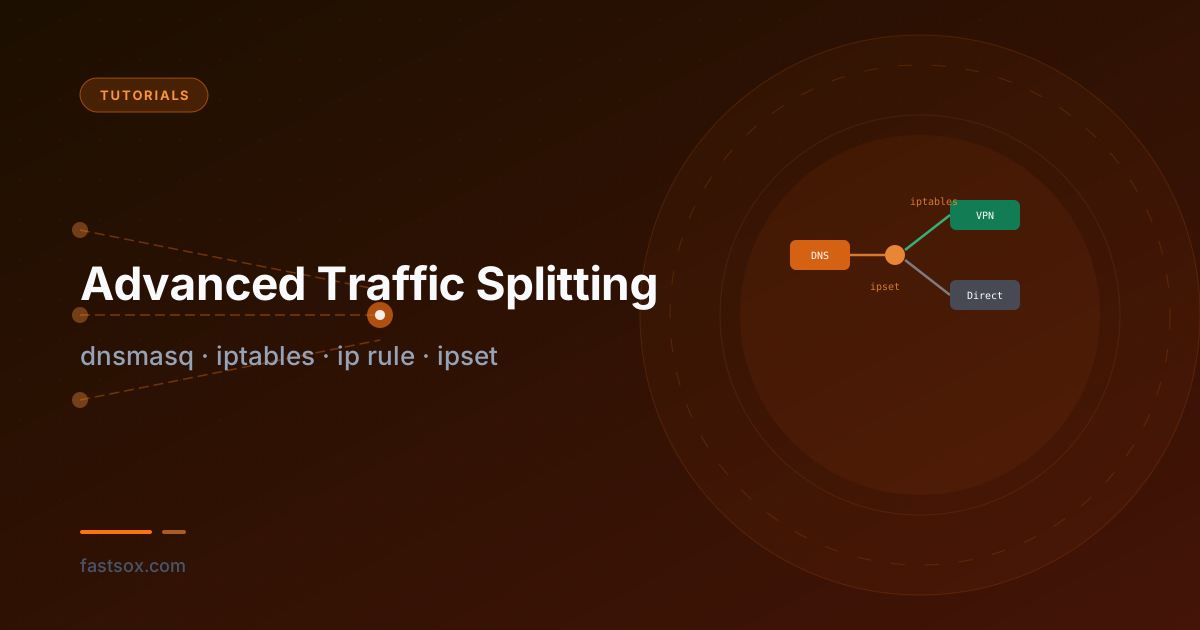
Advanced Traffic Splitting: dnsmasq, iptables, ip rule, and ipset
A technical deep-dive into domain-based split tunneling on Linux — no custom kernel modules, no userspace proxies. Route specific domains through a VPN while keeping everything else direct, using dnsmasq, ipset, iptables marks, and policy-based routing.