Getting Started with FastSox
Welcome to FastSox. This guide walks you through everything you need to go from zero to a secure, private connection — in under 5 minutes for most users. No technical background required.
What You'll Need
- An email address, or a Google / Apple account for OAuth sign-in
- A device running iOS, Android, macOS, Windows, or Linux
- About 5 minutes
Step 1: Create Your Account
Visit console.fastsox.com — this is the FastSox management console where you control your account, devices, and settings.
You have three sign-up options:
Option A: Email and Password
- Click Sign Up
- Enter your email address and choose a strong password (minimum 12 characters recommended)
- Check your inbox for a verification email and click the confirmation link
- You're in
Option B: Sign in with Google
- Click Continue with Google
- Authorize FastSox in the Google OAuth prompt
- Your account is created automatically — no password to remember
Option C: Sign in with Apple
- Click Continue with Apple
- Use Face ID, Touch ID, or your Apple ID password to authorize
- You can choose to hide your real email address using Apple's private relay feature
All three sign-in methods give you the same account — you can use whichever is most convenient on each device.
Step 2: Choose Your Plan
FastSox's free plan includes access to a shared gateway and one registered device. It's a fully functional starting point for personal use.
| Plan | Devices | Gateways | Monthly Traffic | Price | |------|---------|----------|-----------------|-------| | Free | 1 | Shared (basic) | 2 GB | $0 | | Personal | 3 | Shared (all tiers) | 50 GB | $9/mo | | Team | 10 | Shared + 1 dedicated | 200 GB | $49/mo | | Business | 25 | 2 dedicated gateways | 1 TB | $199/mo | | Enterprise | Unlimited | Custom dedicated | Custom | $499/mo |
For most individual users — including those who primarily want access to AI services — the Personal plan is the right choice. See full plan details at fastsox.com/pricing.
If you're trying FastSox for the first time, start with the free plan. You can upgrade at any time from the console without losing your settings or re-authenticating your devices.
Step 3: Download the App
FastSox is available on all major platforms:
iOS (iPhone and iPad)
- Open the App Store on your device
- Search for FastSox
- Tap Get to install
iOS requires granting VPN configuration permission — you'll be prompted on first launch. This is standard for all VPN apps and allows FastSox to create a secure tunnel interface.
Android
- Open Google Play Store
- Search for FastSox
- Tap Install
Android also requires VPN permission on first launch — tap Allow when prompted.
macOS
- Download the FastSox app from fastsox.com or the Mac App Store
- Open the downloaded
.dmgfile and drag FastSox to your Applications folder - Launch the app — you'll be prompted to install a system extension on first run
The macOS system extension enables split tunneling (Smart Mode). Grant the required permissions in System Settings → Privacy & Security if prompted.
Windows
- Download the Windows installer from fastsox.com
- Run the
.exeinstaller — it will install the WireGuard/TAP adapter and the HyperSox client - Launch FastSox from the Start menu
On Windows 11, FastSox uses the WireGuard kernel driver for maximum performance. On Windows 10, a TAP adapter is used as fallback.
Linux
For Debian/Ubuntu-based distributions:
# Add the FastSox repository
curl -fsSL https://pkg.fastsox.com/gpg | sudo gpg --dearmor -o /usr/share/keyrings/fastsox.gpg
echo "deb [signed-by=/usr/share/keyrings/fastsox.gpg] https://pkg.fastsox.com/apt stable main" | \
  sudo tee /etc/apt/sources.list.d/fastsox.list

# Install
sudo apt update && sudo apt install fastsox

# Launch
fastsox
For Arch Linux, install from the AUR: yay -S fastsox
The Linux client is a native application with a GTK interface, and also supports a headless daemon mode for server and automation use cases.
Step 4: Sign In and Initial Configuration
Launch the FastSox app and sign in with the same account you created in Step 1.
On first launch, the app will:
-
Register your device — generates a unique device fingerprint and registers it with your account. You can see your registered devices in the console at console.fastsox.com.
-
Auto-detect the best server — FastSox pings all available gateways and selects the one with the lowest latency to your current location. This takes about 2-3 seconds.
-
Load your routing configuration — if you're on a plan with Smart Mode, the current rule database is synced to your device.
You don't need to configure anything manually. The default settings are optimized for the most common use case: reliable, private access to AI services and blocked content, without impacting local network performance.
Step 5: Choose Your Routing Mode
FastSox offers two routing modes. Understanding the difference helps you get the right balance of protection and performance.
Smart Mode (Recommended for Most Users)
Smart Mode routes only the traffic that needs protection through FastSox — blocked services, AI tools, and privacy-sensitive destinations — while letting everything else connect directly.
Benefits:
- No impact on local network access (printers, NAS devices, local services)
- Full speed for domestic streaming and banking apps
- Lower battery consumption on mobile
- Sub-15ms overhead for AI service traffic
Smart Mode is the default. Unless you have a specific reason to change it, leave it here.
Global Mode
Global Mode routes all network traffic — DNS, HTTP, UDP, TCP — through the FastSox gateway. Use this when:
- You're on a network you completely distrust (hotel, conference center, public event)
- You're in an environment with aggressive content filtering and need maximum bypass coverage
- You're handling sensitive documents and want comprehensive protection
See the full comparison: Global Mode vs Smart Mode: Which Should You Use?
Step 6: Connect
Tap or click the Connect button.
The connection typically establishes in under 2 seconds. You'll see:
- A connected status indicator in the app
- A VPN icon in your system status bar (iOS, macOS, Windows)
- The selected gateway name and your current gateway IP
To verify the connection is working: open a browser and visit ipleak.net or any IP detection service. Your displayed IP should match the FastSox gateway's IP, not your home/ISP address.
If you see your real IP while connected, see the troubleshooting section below.
Step 7: Configure for AI Services
If your primary goal is accessing AI tools like ChatGPT, Claude, or Gemini, Smart Mode handles this automatically — no additional configuration needed.
For best performance:
- The AI-optimized gateways are automatically preferred for AI service traffic in Smart Mode
- QUIC transport (0-RTT) is used automatically when available, minimizing latency
For a detailed explanation of how FastSox handles AI service routing, see: How FastSox Helps You Connect to Any AI Service.
Recommended Settings
After your first successful connection, here are the settings worth configuring:
Auto-Connect on Untrusted Networks
Navigate to Settings → Auto-Connect and enable "Connect on untrusted Wi-Fi". FastSox will automatically activate whenever you join an open (password-free) network — protecting you on public Wi-Fi without requiring you to remember to connect manually.
Kill Switch
The kill switch blocks all internet traffic if the FastSox connection unexpectedly drops, preventing accidental data exposure. Enable it under Settings → Security → Kill Switch.
Note: the kill switch will interrupt your internet connection if FastSox is offline (e.g., during a brief server maintenance window). If you need uninterrupted connectivity at the cost of potential momentary unprotected traffic, leave it disabled.
DNS Protection
FastSox's DNS protection ensures all DNS queries route through the encrypted tunnel — preventing your ISP from logging which domains you visit even when connected. It's enabled by default; check Settings → DNS to confirm.
Trusted Networks
You can whitelist specific networks (your home Wi-Fi, your corporate network) where FastSox should not auto-connect. Configure this under Settings → Trusted Networks.
Troubleshooting
Can't Connect
Symptom: The app shows "Connecting..." for more than 10 seconds, then fails.
Solutions:
- Try switching from Smart Mode to Global Mode — some networks block the specific protocol ports
- Try a different gateway (tap the gateway name to see the list)
- If you're on a network with UDP blocked, go to Settings → Protocol and switch to TCP mode
- Check if a firewall or antivirus is blocking the FastSox system extension
Slow Speed After Connecting
Symptom: Connection succeeds but browsing or AI tools feel slower than without FastSox.
Solutions:
- Try a different gateway — the auto-selected one may be temporarily congested
- Ensure Smart Mode is active (not Global Mode), so only the traffic that needs it goes through FastSox
- Switch from TCP to QUIC transport in Settings → Protocol (available on Personal plan and above)
IP Not Changed
Symptom: Your real IP still shows when visiting ipleak.net while connected.
Solutions:
- Hard refresh the ipleak.net page — browser cache may be showing old results
- Check for WebRTC leaks — FastSox blocks these by default, but verify in Settings → Security → Block WebRTC
- If on macOS, ensure the system extension was fully installed (check System Settings → Privacy & Security)
Device Not Showing in Console
If your device doesn't appear at console.fastsox.com after signing in:
- Sign out of the app and sign back in
- Check that you're signed in with the same account (email address) that you used in the console
Getting Help
- Documentation: fastsox.com/docs
- Support: fastsox.com/support
- Console: console.fastsox.com
- Community: fastsox.com/community
FastSox is built by OneDotNet Ltd. We're committed to making private, unrestricted internet access simple and reliable for everyone.
Related Articles
How to Use WireGuard on Linux: From Installation to Multi-Peer Setup
A practical, step-by-step guide to installing WireGuard on Linux, generating keys, configuring a server and multiple clients, and verifying your tunnel — plus tips on troubleshooting common issues.
How to Optimize TCP Traffic on Windows and Linux
A practical guide to tuning TCP congestion control, buffer sizes, and MTU on both Linux and Windows — so your VPN or proxy connection reaches its full potential.
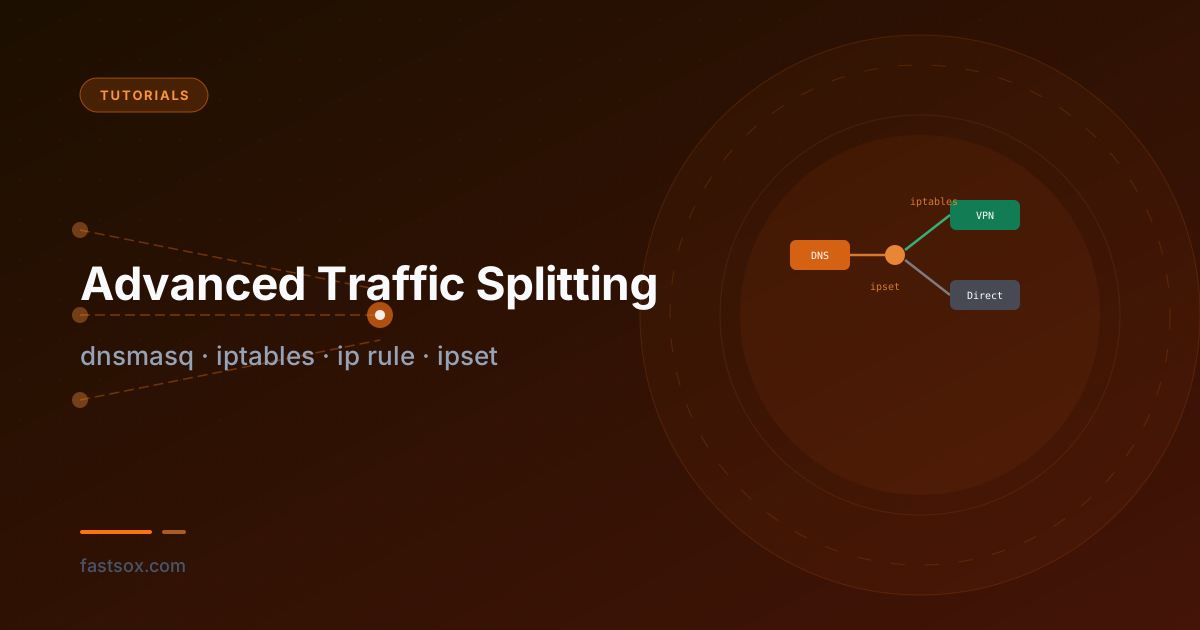
Advanced Traffic Splitting: dnsmasq, iptables, ip rule, and ipset
A technical deep-dive into domain-based split tunneling on Linux — no custom kernel modules, no userspace proxies. Route specific domains through a VPN while keeping everything else direct, using dnsmasq, ipset, iptables marks, and policy-based routing.