Global Mode vs Smart Mode: Which Should You Use?
When you open FastSox, one of the first decisions you'll encounter is choosing between Smart Mode and Global Mode. Both modes protect your traffic — but they do so in fundamentally different ways, with different tradeoffs. Choosing the right mode for your situation improves both your security posture and your network performance.
This guide explains exactly how each mode works, when each is appropriate, and how to switch between them.
What is Global Mode?
Global Mode routes every byte of network traffic on your device through the FastSox encrypted tunnel. Every TCP connection, every UDP datagram, every DNS query — regardless of destination — is encapsulated and sent to your FastSox gateway before reaching the open internet.
From a network perspective, your device has only one path to the internet: through the FastSox gateway. Your real IP address is invisible to any destination server. Your ISP sees only encrypted traffic to the FastSox server.
What Global Mode Protects
- All web browsing (encrypted DNS + encrypted traffic)
- All app traffic (banking apps, email, messaging)
- All background traffic (OS updates, app sync, telemetry)
- Local network traffic that exits to the internet
What Global Mode Does Not Protect By Default
- Access to local network devices (printers, NAS, smart home devices) — these are typically excluded via the local LAN bypass rule
- Loopback traffic (
127.0.0.1,::1) — never tunneled
What is Smart Mode?
Smart Mode is FastSox's rule-based routing engine. Instead of tunneling everything, it makes a routing decision for each connection based on the destination domain or IP address:
- Matched destinations (AI services, blocked domains, privacy-sensitive services) → route through FastSox
- Unmatched destinations (local services, domestic apps, streaming, banking) → connect directly
The result: you get the bypass and privacy benefits of a VPN precisely where you need them, without any performance impact on traffic that doesn't need protection.
How the Rule Engine Works
Smart Mode uses a layered rule database:
- Domain rules: Domain names and suffix patterns (e.g.,
openai.com,*.anthropic.com) matched against every DNS lookup - IP CIDR rules: Known datacenter and CDN ranges associated with restricted services
- Geo-IP rules: Traffic to certain countries routed through FastSox regardless of domain
- Default policy: Direct connection for everything not matched by the above rules
The rule database is maintained by FastSox and updated automatically — when a service adds new CDN endpoints or rotates IP ranges, your Smart Mode routing updates within hours, with no action required on your part.
Split-Tunneling Implementation
Smart Mode is implemented at the OS network stack level, not the application level. FastSox installs custom entries in your system's routing table:
- Matched destination IPs are given a more-specific route through the VPN interface (
utun0on macOS, a WireGuard interface on Linux/Windows) - All other traffic follows the default gateway (your router)
This is true split-tunneling: it operates below the application layer, meaning every app on your device benefits from the correct routing without any per-app configuration.
Side-by-Side Comparison
| | Global Mode | Smart Mode | |---|---|---| | All traffic encrypted | Yes | Only matched traffic | | Local network access | Blocked by default | Fully preserved | | AI service access | Yes | Yes | | Speed impact — local traffic | All traffic +5-15ms | < 1ms (direct) | | Speed impact — AI/blocked services | Same as Smart Mode | Same as Global Mode | | Battery drain (mobile) | Higher | Lower | | DNS leak protection | Full | Partial (matched domains only) | | ISP visibility | Only FastSox server | Direct traffic visible to ISP | | Streaming services | May conflict with geo-detection | Direct connection (no conflict) | | Best use case | Travel, sensitive work, high-risk environments | Daily use, AI access, mixed workflows | | Complexity | None | Rule database maintained automatically |
Use Case Decision Guide
"I'm at a hotel, airport, or conference"
Use Global Mode.
Public network infrastructure at hotels and airports is frequently compromised or monitored. Evil twin access points, ARP spoofing, and captive portal injection are all real risks in these environments. When you're on a network you don't control and don't trust, Global Mode's complete tunnel provides the comprehensive protection you need.
See Why Securing Your Connection Matters for a detailed breakdown of public Wi-Fi threats.
"I want to use ChatGPT and Claude from home"
Use Smart Mode.
You're on a trusted home network. You want access to AI services that are geo-restricted or throttled, but you don't want to route your Netflix, Spotify, or bank traffic through FastSox unnecessarily. Smart Mode handles this exactly: AI service traffic goes through FastSox, everything else connects directly at full speed.
"I'm working with confidential documents"
Use Global Mode.
If you're handling sensitive business documents, legal materials, medical records, or financial data, Global Mode ensures all traffic — including metadata about which services you're accessing — is hidden from your ISP and any network observers.
"I want to browse normally but access restricted AI tools"
Use Smart Mode.
This is the most common use case, and it's exactly what Smart Mode was designed for. You get seamless AI access without impacting your normal browsing, local network devices, or domestic services.
"I'm on a fully restricted network that blocks VPNs"
Use Global Mode with HyperSox protocol.
In environments where VPN traffic itself is actively blocked (via DPI), FastSox's HyperSox protocol provides obfuscation — your traffic appears as ordinary HTTPS to a real website. Global Mode plus HyperSox's REALITY TLS masquerading gives you maximum bypass capability.
"I'm traveling internationally for work"
Start with Smart Mode, switch to Global Mode when needed.
Smart Mode handles AI tool access and getting around geo-restrictions efficiently. If you encounter a network that's more restrictive than expected (a hotel that blocks VPN protocols, a country with national-level filtering), switching to Global Mode takes one tap and takes effect immediately.
Performance Impact in Detail
The performance comparison depends on what traffic you're measuring:
For traffic routed through FastSox (same in both modes): Both modes use identical gateway infrastructure and HyperSox protocol. The latency overhead for AI services is under 15ms with QUIC transport, regardless of which mode you're in.
For traffic NOT going through FastSox:
- Global Mode: Everything incurs the FastSox overhead — your local printer, your NAS, your smart home devices, your domestic streaming. Typical overhead: 5-15ms latency + potential throughput reduction on bandwidth-heavy tasks.
- Smart Mode: Unmatched traffic connects directly, at wire speed, with zero additional latency. Your streaming service gets your full ISP bandwidth without any VPN overhead.
Battery on mobile: Global Mode keeps the VPN tunnel active and encrypting all traffic continuously — the cryptographic work and radio activity add up. Smart Mode's selective tunneling reduces this overhead significantly. On a typical day of mixed usage, Smart Mode uses approximately 15-25% less battery than Global Mode.
Custom Rules in Smart Mode
Smart Mode supports user-defined routing rules. You can add custom domains and IP ranges that should always route through FastSox (or always connect directly), regardless of the default rule database.
Adding a custom domain:
- Open FastSox → Settings → Smart Mode Rules
- Tap Add Rule
- Enter the domain (e.g.,
internal-tool.mycompany.com) and select Proxy (through FastSox) or Direct - Save — the rule takes effect immediately
This is useful for:
- Company intranet tools accessible only from certain countries
- Personal domains you want privacy protection for
- Domestic streaming services in certain regions that incorrectly trigger FastSox's geo-IP rules
Removing a rule: swipe left on any custom rule and tap Delete.
How to Switch Between Modes
Switching routing modes takes one tap:
- Open the FastSox app
- On the main screen, tap the mode name (shown below the connection status)
- Select Smart Mode or Global Mode
- If you're currently connected, the mode change applies immediately — no reconnect required
The setting persists across sessions. FastSox remembers your last-used mode.
Our Recommendation
For most users, Smart Mode is the right default.
It gives you everything you need for daily use — AI access, geo-restriction bypass, privacy for sensitive services — without the performance tradeoff of routing all traffic through a VPN. The rule database is maintained automatically, so you don't have to think about which services need routing.
Switch to Global Mode when you're on untrusted public networks, handling sensitive work, or in an environment with aggressive network restrictions.
You can always toggle between them in one tap, so there's no wrong choice — use whichever fits your current situation.
Next Steps
- New to FastSox? Start here: Getting Started with FastSox
- Want to optimize for AI tools? See: How FastSox Helps You Connect to Any AI Service
- Create your free account at fastsox.com
Related Articles
How to Use WireGuard on Linux: From Installation to Multi-Peer Setup
A practical, step-by-step guide to installing WireGuard on Linux, generating keys, configuring a server and multiple clients, and verifying your tunnel — plus tips on troubleshooting common issues.
How to Optimize TCP Traffic on Windows and Linux
A practical guide to tuning TCP congestion control, buffer sizes, and MTU on both Linux and Windows — so your VPN or proxy connection reaches its full potential.
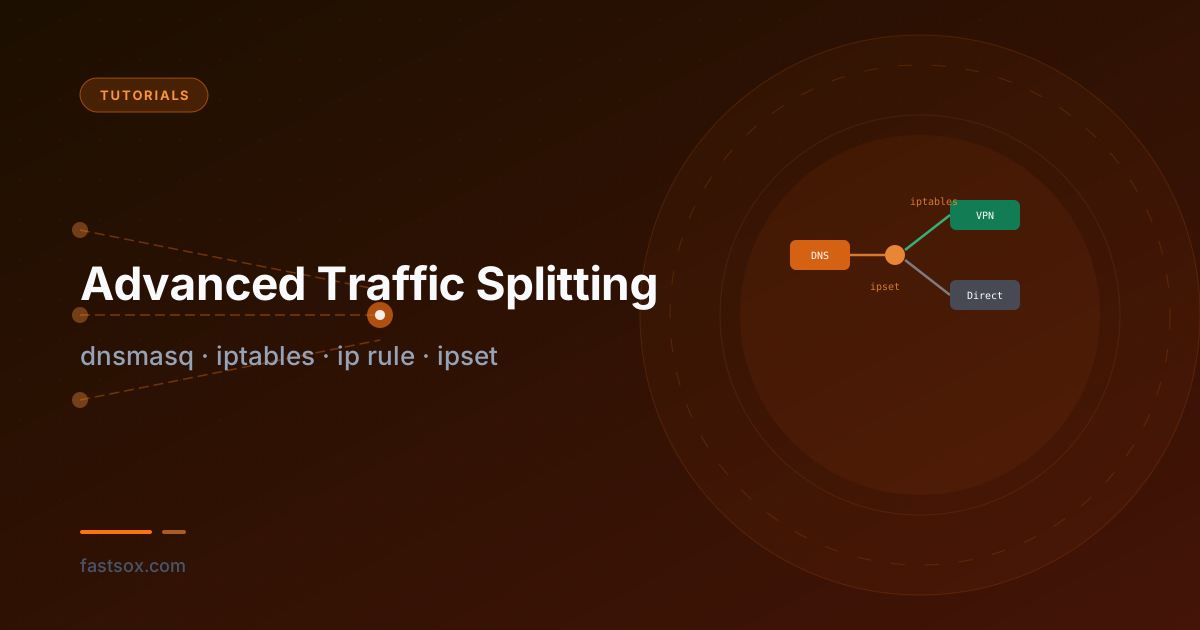
Advanced Traffic Splitting: dnsmasq, iptables, ip rule, and ipset
A technical deep-dive into domain-based split tunneling on Linux — no custom kernel modules, no userspace proxies. Route specific domains through a VPN while keeping everything else direct, using dnsmasq, ipset, iptables marks, and policy-based routing.